📲 The Ultimate Drop: A Comprehensive How-To Guide for Downloading and Installing Garena Free Fire
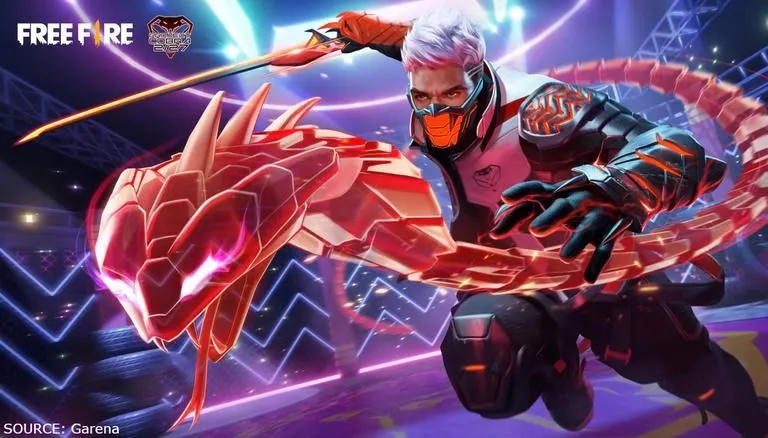
Garena Free Fire has established itself as a global phenomenon, delivering intense, fast-paced battle royale action optimized for a massive range of devices. Known for its quick, 50-player matches and dynamic character-based combat, the game offers a low-barrier entry into the competitive mobile gaming sphere. However, simply tapping "Install" is only the first step. To ensure optimal performance, minimal lag, and a smooth introduction to the game's mechanics, a structured approach to downloading, installing, and configuring the game is essential.
This expert guide details the step-by-step process for downloading and installing Garena Free Fire across its primary platforms (Android, iOS, and PC Emulators), followed by crucial optimization tips to guarantee you hit the ground running without technical delays.
💻 Phase I: Preparation and Platform Selection
Before initiating the download, you must confirm your device's compatibility and choose your primary platform for the best experience.
1. Verifying System Requirements (The Compatibility Check)
Free Fire is famously lightweight, but ensuring your device meets the minimum specifications prevents frustrating performance issues like frame rate drops and overheating.
- Android Requirements:
- Minimum OS: Android 4.1 or higher.
- RAM: At least 1 GB (2 GB recommended for smooth gameplay).
- Storage: Around 1.5 GB of free space for the initial install and resource packs.
- iOS Requirements:
- Minimum OS: iOS 9.0 or later.
- Compatible Devices: iPhone 5s or newer, or equivalent iPad models.
Cleaning and Optimizing Storage
Even if you meet the requirements, free up extra space. Delete old, unnecessary files and cache data from other apps. A device with less than $10\%$ free storage often slows down its processing speed, directly impacting your in-game performance. This is especially crucial for devices with 2 GB RAM or less.
2. Choosing Your Download Platform (Mobile vs. PC)
Free Fire is primarily a mobile game, but many players opt for PC emulation for better controls, viewing, and performance.
- Mobile (Pros/Cons):
- Pros: Official platform, easy on-the-go play, fully supported by Garena.
- Cons: Limited screen size, potential overheating, and controls can be less precise than a mouse and keyboard.
- PC Emulator (Pros/Cons):
- Pros: Superior control (mouse/keyboard aiming), stable performance, larger display.
- Cons: Requires a capable PC, Garena officially discourages some emulator use in ranked matches, and the setup process is more complex.
📥 Phase II: Step-by-Step Mobile Installation (Android & iOS)
This is the most straightforward method, utilizing the official platform stores for security and easy updates.
3. How to Download on Android (Google Play Store)
The Google Play Store offers the most direct and secure way to acquire the application.
- Open the Play Store: Ensure your device is connected to a stable Wi-Fi network (the game file is large).
- Search: Use the search bar to look for "Garena Free Fire" or "Free Fire MAX" (the enhanced version).
- Install: Tap the official app listing (published by Garena International I) and press the Install button. The app will download and automatically install onto your device.
Post-Installation Steps on Android
Once installed, the app icon will appear. Before launching, check your phone’s settings to ensure Free Fire has the necessary Storage Permissions to download the additional resource files required after the initial install. These files include maps, skins, and high-definition textures.
4. How to Download on iOS (Apple App Store)
The process on Apple devices is nearly identical, ensuring a secure download environment.
- Open the App Store: Navigate to the App Store application on your iPhone or iPad.
- Search: Use the search function (magnifying glass icon) and type "Garena Free Fire."
- Download: Select the correct application and tap the cloud icon (if previously downloaded) or the Get button. Authentication via Face ID, Touch ID, or password may be required.
- Note on Updates: iOS users should always ensure Automatic Downloads is enabled in the settings to quickly receive mandatory patches and updates without manual intervention, which is critical for competitive play.
🖥️ Phase III: PC Installation via Emulator
For players seeking the superior control and stable performance of PC, an Android emulator is necessary. BlueStacks and LDPlayer are the most commonly used options.
5. Installing the Emulator Software
This step involves setting up the virtual Android environment on your desktop.
- Choose and Download: Select a trusted emulator (e.g., BlueStacks 5 or GameLoop). Download the setup file from the official website.
- Installation and Setup: Run the installer and follow the on-screen prompts. Once installed, the emulator will prompt you to sign in with a Google Account (required to access the Play Store within the emulator).
6. Downloading Free Fire within the Emulator
Once the emulator is running and linked to your Google Account, the process mirrors the mobile experience.
- Access the Play Store: Open the Google Play Store icon within the emulator's home screen.
- Search and Install: Search for "Garena Free Fire" and click Install. The emulator handles the mobile download and installation process seamlessly, placing the Free Fire icon on the emulator's virtual desktop.
- Emulator Optimization: After installation, go to the emulator's Settings and allocate more CPU Cores and RAM (e.g., 4 Cores and 4096 MB RAM) to the Free Fire application for maximum frame rate stability.
🛠️ Phase IV: Initial Setup and Optimization
The first launch of Free Fire is crucial for configuring settings that will give you a competitive edge.
7. Post-Install Resource Downloads
When you first open Free Fire, the game needs to download additional files that are not included in the initial store download.
- Download High-Resolution Packs: Navigate to the Download Center (usually an arrow icon on the lobby screen). Download the High-Resolution Graphics Pack only if you are on a high-end device or PC emulator. For older devices, skip this to save storage and processing power.
- Map Downloads: Download the specific map packs (e.g., Bermuda, Kalahari) that you intend to play. Downloading all maps at once is not necessary and only consumes storage.
8. Graphics and Frame Rate Configuration
Your settings should prioritize Frame Rate over visual fidelity (Graphics) for competitive play.
- Graphics Quality: Set the Graphics option to Standard or Smooth. Avoid Ultra unless you have a dedicated gaming phone or a powerful PC.
- High FPS: Crucially, set the High FPS toggle to ON (or High). A stable $60$ frames per second is far more important than high-resolution textures, as it reduces input lag and improves aiming.
🎮 Phase V: Controls and Account Security
The final steps involve customizing the layout and securing your new account.
9. Customizing the HUD (Heads-Up Display)
The default control layout is rarely optimal. Immediately customize the buttons to suit your hands and playstyle.
- The Custom HUD Editor: Go to Settings $\rightarrow$ Controls $\rightarrow$ Custom HUD. Increase the size and adjust the placement of critical buttons: Fire Button, Jump Button, and Crouch Button.
- The Three/Four Finger Claw: Many experienced players use the 'Claw' grip. This requires moving the Fire Button and Jump Button to the top-left or top-right corners of the screen to allow use of your index fingers for simultaneous movement, aiming, and jumping.
10. Account Security and Linking
Never leave your progress unsecured. Link your game to a permanent account immediately.
- Linking Options: Link your Free Fire account to a stable external service like Google (Gmail), Facebook, or VK. Do not rely solely on the Guest Account, as progress can be lost if the app is deleted or the phone is reset.
- Two-Factor Authentication (2FA): If your linked account (e.g., Google or Facebook) supports 2FA, enable it. This is the best defense against account theft.