
📲 Ultimate Setup: A Master How-To Guide for Downloading and Installing Garena Free Fire MAX
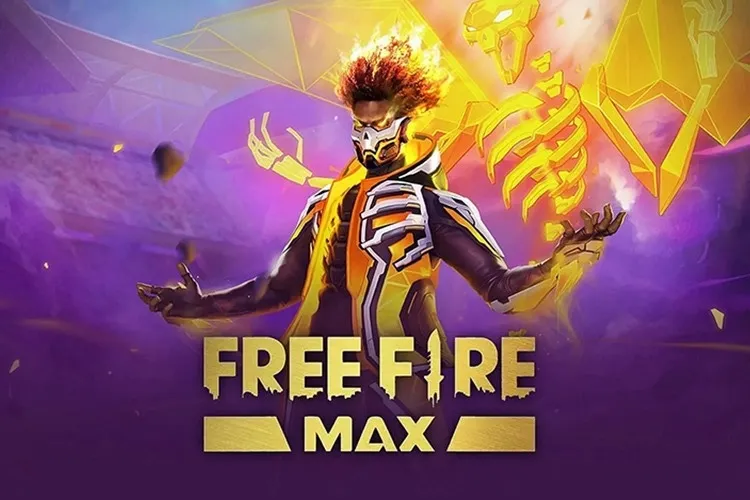
Garena Free Fire MAX is the premium, visually enhanced version of the globally popular battle royale game, Free Fire. Designed to deliver an immersive experience with high-resolution graphics, dynamic audio effects, and smoother animations, it requires specific preparation and attention to detail during the download process. Crucially, thanks to Firelink technology, players can seamlessly log in with their existing Free Fire account, maintaining all progress and items across both versions, making the switch purely a matter of preference and device capability.
This comprehensive guide is written by an expert to ensure a smooth transition to the MAX experience. It covers everything from checking your device's readiness to troubleshooting common installation errors, guaranteeing you spend less time downloading and more time securing that Booyah.
💻 Phase I: Pre-Download Readiness (System Checks and Preparation)
Before initiating the download, the most critical step is ensuring your mobile device meets the specifications and has adequate space, as Free Fire MAX is significantly more demanding than the standard version.
1. Verifying Minimum System Requirements
While Free Fire is famous for running on low-end devices, the MAX version requires a mid-to-high-tier device to deliver the advertised graphical improvements smoothly. Checking your device's specifications is non-negotiable.
Android Device Requirements
- Operating System: Android 4.1 (or newer is recommended).
- CPU: Dual-core 1.2GHz minimum (Octa-core 1.8GHz is highly recommended for smooth performance).
- RAM: 2 GB minimum (4 GB or higher is strongly recommended).
iOS Device Requirements
- Operating System: iOS 9.0 (iOS 12.0 or higher is recommended).
- Device Model: iPhone 6 minimum (iPhone 8 or newer is highly recommended).
- Size: The initial download size is approximately 1.2 GB on iOS, but total required space increases with updates.
2. Ensuring Sufficient Storage Space
The primary cause of installation failure is insufficient storage. The initial download size is only part of the story; the game requires additional space for subsequent patches and in-game resource packs.
- Recommended Free Space: You should aim to have at least 8 GB of free internal storage. The game file itself may be around $1$ GB, but the mandatory resource packs and future updates will quickly consume more space.
- Clearing Cache and Data: Before downloading, navigate to your phone's settings and clear the cache and data for the Google Play Store (Android) or restart your device (iOS) to resolve any minor software glitches that might impede the download process.
⬇️ Phase II: The Core Download Process (Official Channels)
The safest and most reliable way to download Free Fire MAX is always through the official application stores. Avoid third-party APK sites to prevent security risks and account bans.
3. Step-by-Step for Android Users (Google Play Store)
The process is straightforward but requires a stable internet connection for the large file size.
- Search and Locate: Open the Google Play Store app on your device. Use the search bar to type "Free Fire MAX" (ensure you see the "Garena International I Private Limited" developer name).
- Installation Initiation: Tap the Install button. The Play Store will confirm if your device is compatible. If the game is compatible, the download will begin.
- Tip: Ensure you are connected to a stable Wi-Fi network to prevent exceeding mobile data limits and to ensure download stability.
4. Step-by-Step for iOS Users (Apple App Store)
The process on Apple devices is similar, often requiring a quick confirmation step.
- Search and Locate: Open the App Store on your iPhone or iPad. Navigate to the search tab and type "Free Fire MAX."
- Download Confirmation: Tap the Get button. You will be prompted to confirm the download using your Touch ID, Face ID, or Apple ID password. The large file size may take several minutes depending on your internet speed.
5. Alternative: Downloading via Emulator (PC/Mac)
While not officially supported as a PC game, many users opt to play using an Android emulator for a larger screen experience.
- Emulator Installation: Download and install a reliable Android emulator (such as BlueStacks or GameLoop) that meets its own minimum PC system requirements (often 4GB+ RAM, 10GB+ free storage).
- In-Emulator Download: Open the emulator, navigate to the Google Play Store within the emulator, and search for and install Free Fire MAX following the standard Android procedure.
🛠️ Phase III: Post-Installation and Login (Firelink Technology)
Once the application is installed, the next crucial phase is successfully logging in and initiating the final resource downloads.
6. Initial Launch and Resource Downloads
The initial app size is compact, but the game will prompt you to download mandatory high-resolution resource packs upon the first launch.
- Accept Permissions: The game will request access to your device's storage and microphone (for voice chat). You must grant storage permission for the game to download and save its necessary data files.
- In-Game Download: The game will immediately initiate the download of HD Textures, Enhanced Sound Packs, and 360-Degree Lobby assets. This secondary download is often several hundred megabytes and requires patience and a continuous internet connection.
7. Utilizing Firelink Technology for Account Access
Firelink is the proprietary technology that links the standard Free Fire and Free Fire MAX accounts, allowing for complete cross-play and account synchronization.
- Login Method: Select the same login method you used for your original Free Fire account (e.g., Facebook, Google, VK, Garena ID).
- Synchronization: Upon successful login, your character, all weapon skins, currency (Diamonds and Gold), rank progress, and inventory will be instantly available in the MAX version. Your progress is maintained across both apps in real-time.
🛑 Phase IV: Troubleshooting Common Download Errors
Even with adequate preparation, download and installation errors can occur. These fixes address the most common issues reported by users.
8. Addressing 'Insufficient Storage' Errors
This error often appears even when it seems you have enough space.
- Deep Clean: Delete unnecessary media (photos, videos), uninstall old apps, and clear the data/cache for major social media apps, not just the Play Store.
- Check Hidden Files: Sometimes, large, forgotten download folders (e.g., WhatsApp media folders) can consume massive amounts of space. Use a file manager app to find and delete these large files.
9. Resolving 'Download Failed/Stuck' Errors
Connection stability is usually the culprit for downloads that fail or get stuck at a percentage.
- Network Reset: Turn off your Wi-Fi router for 60 seconds, then restart it. For mobile data, toggle Airplane Mode on and off.
- Clear Play Store Data (Android): Go to Settings > Apps > Google Play Store > Storage > Clear Cache and Clear Data. Relaunch the Play Store and retry the download. This forces the download service to reset.
10. Fixing 'Device Incompatible' Errors
If the Play Store or App Store reports your device is incompatible, but you believe it meets the minimum requirements, there are limited solutions.
- System Update: Ensure your phone's operating system (Android or iOS) is fully updated to the latest version available for your device.
- Reboot: A simple device restart can sometimes clear a temporary compatibility flag on the app store side. If the error persists after checking all minimum requirements, your device may simply lack the necessary hardware or GPU support for the MAX version's enhanced graphics.